
Administration Support
This guide is to support club owners and admins using the Club Management page. It walks through every action available to you and what to expect when you use it.
Owners and admins can manage coaches, the club logo, teams and past matches. Owners are also able to manage admins and, if necessary, transfer club ownership. You will only be able to see this page if you are logged in to an owner or admin level account.
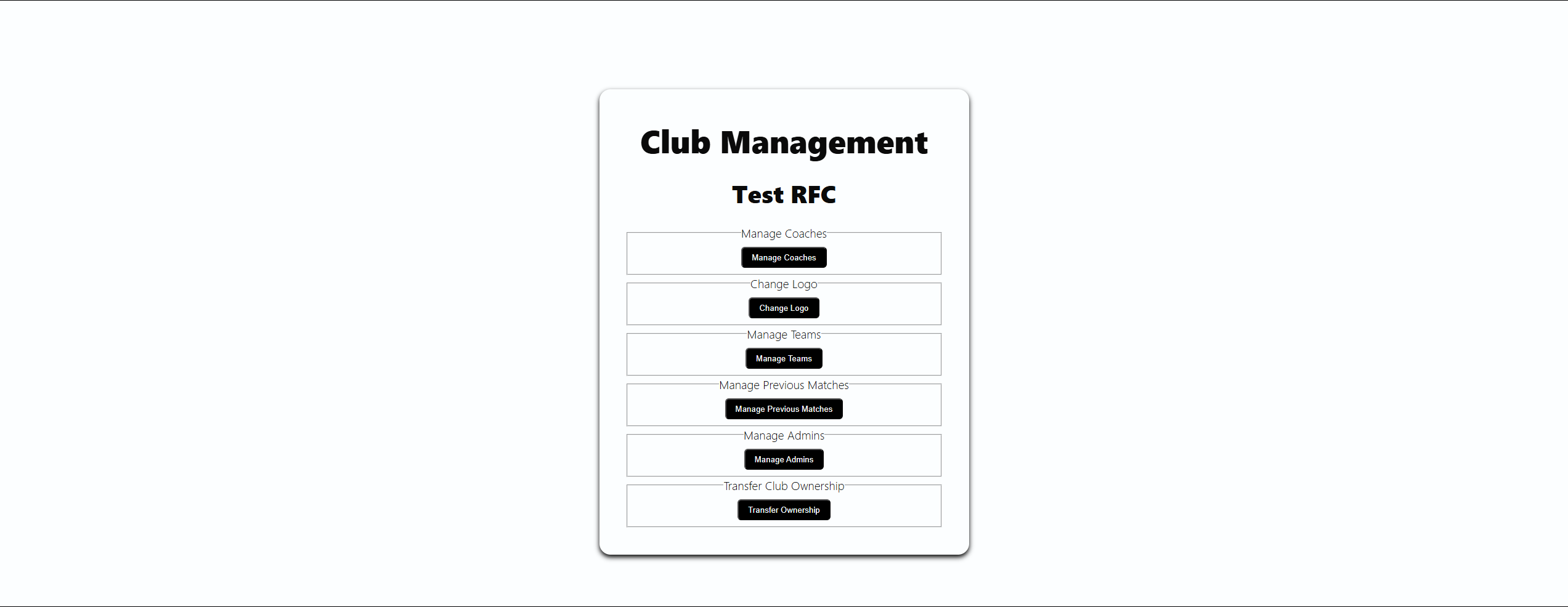
Manage Coaches
This feature is designed to assign a registered user as a coach, or to remove an existing coach
Adding a Coach:
- Select Manage Coaches
- Choose Add New Coach
- Search for and select the user from the list (search by name or email)
- Submit
Note: Only users already registered to your club appear in this list
Removing a Coach:
- Select Manage Coaches
- Choose Remove Current Coach
- Search for and select the coach from the list (search by name or email)
- Submit
Note: Only coaches already assigned to your club appear in this list
Change Club Logo
This feature only supports logo URLs, you are not currently able to upload an image file
- Select Change Logo.
- Enter the new logo image URL
- Submit
Manage Teams
Use this to add a new team under your club, or remove one that's no longer needed
To add a team:
- Select Manage Teams
- Choose Add New Team
- Enter a team name
- Submit
Team names must be unique within a club. If a team with that name already exists in your club it won't be created
To remove a team:
- Select Manage Teams
- Choose Remove Existing Team
- Search for and select the team to remove
- Submit
Note: A team cannot be removed if it has matches assigned to it. You'll need to remove those matches first
Manage Previous Matches
Use this to permanently delete a past match and its recorded events
To add a team:
- Select Manage Previous Matches
- Choose Add New Team
- Search for and select the match, they are listed as Date | Club Name Team v Opposition
- Submit
This permanently deletes the match and all recorded data, this cannot be undone
Manage Admins (Owner Only)
This feature is designed to assign a coach as an admin, or to remove an existing admin
Adding an Admin:
- Select Manage Admins
- Choose Add New Admin
- Search for and select the coach from the list (search by name or email)
- Submit
Note: Only coaches already assigned to your club appear in this list - a user must first be assigned as a coach
Removing an Admin:
- Select Manage Admins
- Choose Remove Current Admin
- Search for and select the admin from the list (search by name or email)
- Submit
Note: Only admins already assigned to your club appear in this list
Transfer Ownership (Owner Only)
This hands full control of the club to another admin. Read this section carefully before proceeding
To Transfer Ownership:
- Select Manage Transfer Ownership
- Read the Disclaimer
- Enter your email and password to confirm
- Search for and select the admin/new owner from the list (search by name or email)
- Submit
Note: If your email and/or password do not match or if the new owner is not an admin or registered to the club, the transfer will fail