
Recording Match Data
This guide is for coaches, admins, and owners using the Live Match Event Recorder. It walks through how to log events during a match, what each option means, and how the scoreboard and match record are affected.
You'll only see this page if you have an active match assigned to you. If you don't have one, you'll be redirected to start a new match.
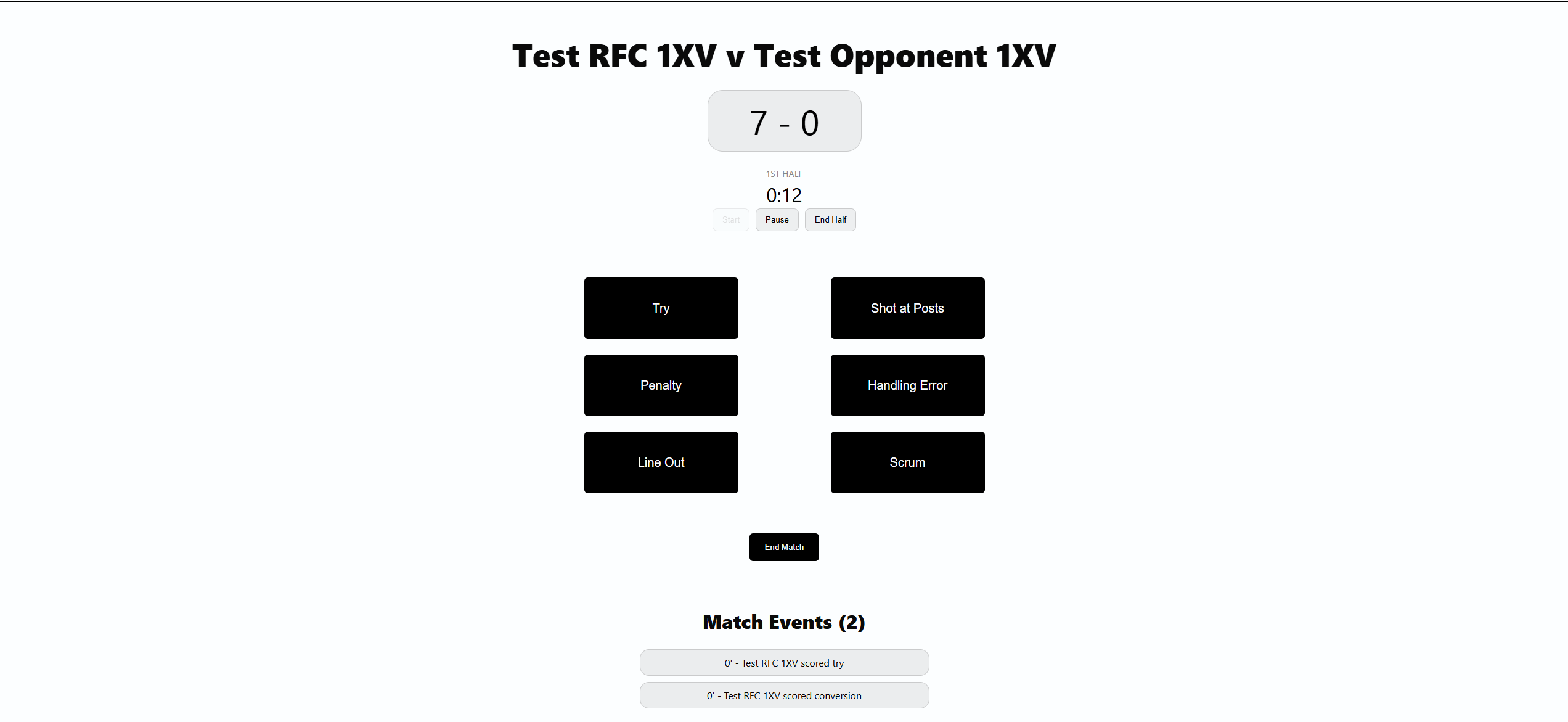
Overview
This feature is designed to assign a registered user as a coach, or to remove an existing coach
Recording a Try
This section records a try for either side
- Select Try
- Select whether the try was Scored (by your club team) or Conceded (scored by the opposing team)
- Submit
This will automatically adjust the score accordingly
Recording a Shot at Posts
This section records a conversion or penalty kick attempt, for either side
- Select Shot at Posts
- Select which team attempted the kick
- Select the kick type (Conversion or Penalty)
- Select the outcome (Successful or Unsuccessful)
- If unsuccessful you will be able to select the reason
- Submit
This will automatically adjust the score accordingly. Unsuccessful kicks don't affect the score, but are still logged
Recording a Penalty
This section records any penalties from either team
- Select Penalty
- Select the offending side
- Select the passage of play (Attack, Defense or Scrum)
- Select the reason (The options shown depend on the passage of play you selected)
- Select whether a card was shown
- If a card was shown, select the colour
- Submit.
This section is designed for recording discipline, penalty trends and pressure applied to opposition
Logging a Penalty from a Scrum:
This modal also opens automatically if you log a scrum penalty from the Scrum recorder section, so you can add the penalty details in one flow, starting with recording a scrum
Recording a Handling Error
This section records handling errors exclusively by your club team.
- Select Handling Error
- Select the type of error
- Submit
Recording a Line Out
This section records the outcome of a lineout, regardless of which team fed it
- Select Line Out
- Select which team fed the lineout
- Select the outcome (Room for Improvement is for when your team was successful (stole it or won your own feed, but it was not perfect))
- Select the detail. The options shown depend on the outcome you selected
- Submit
Recording a Scrum
This section records the outcome of a scrum, regardless of which team fed it
- Select Scrum
- Select which team fed the scrum
- Select the outcome
- Select supporting details about the scrum
- Select whether a penalty was awarded
- Submit
If you Select Yes for penalty, the Penalty section opens automatically so you can log the penalty details right away
Ending the Match
This section marks the current match as complete.
- Select End Match.
This marks the match as complete and takes you to the matches list
Note: Make sure all events are logged before ending the match, as you won't be able to add further live events once it's marked complete